AZTCOFW / TECHNICAL GUIDE
Configure outbound NAT
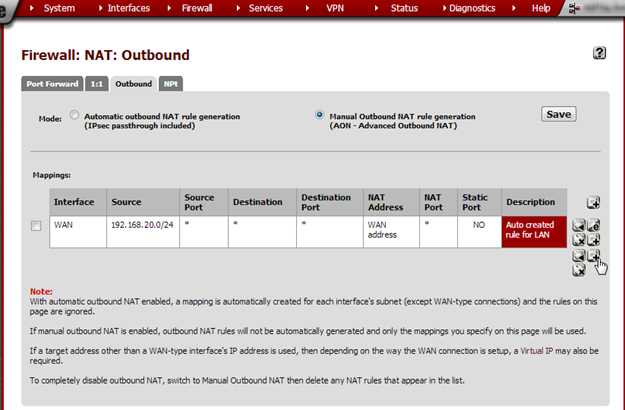
In the default setup outbound NAT is configured automatically. We need to set it to Manual in order to add Site A’s subnet. This configuration step is not required on the router at site A.
Site B Configuration
From the Firewall menu, choose NAT and click the Outbound tab. Note that Mode is set to Automatic outbound NAT rule generation. Select Manual Outbound NAT rule generation and click Save. On the next page, click Apply changes.
Click + [Image unavailable in the source] to open the New Mapping page.
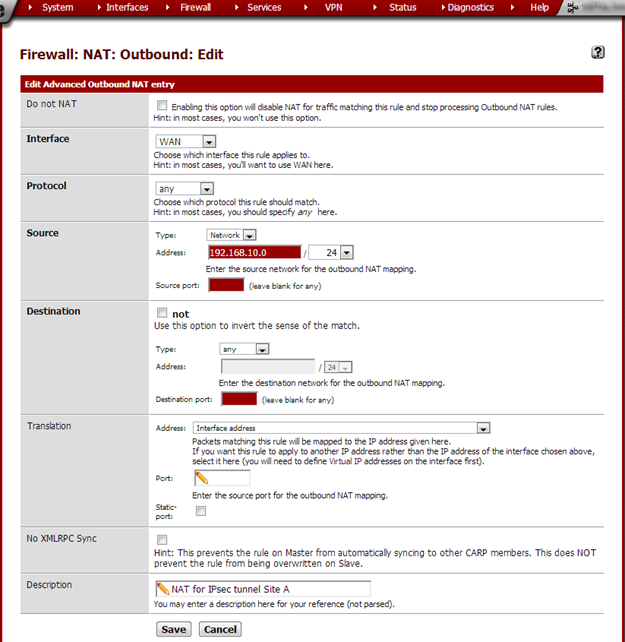
As the Source Type, select Network. In the Source Address field type Site A’s subnet: 192.168.10.0/24. In the Description field, type NAT for IPsec tunnel Site A.
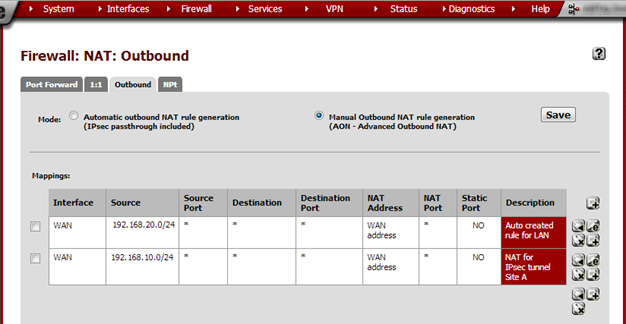
Click Save and on the next page, click Apply changes. The new entry should now be shown in the outbound NAT overview.
Archive imported from the AZTCOFW knowledge base on 2026-09-05. Historical source records may refer to older software versions. Confirm applicability before changing a production system.
Original source ↗