AZTCOFW / TECHNICAL GUIDE
Set up the IPsec tunnel Phase 1
Site A Configuration
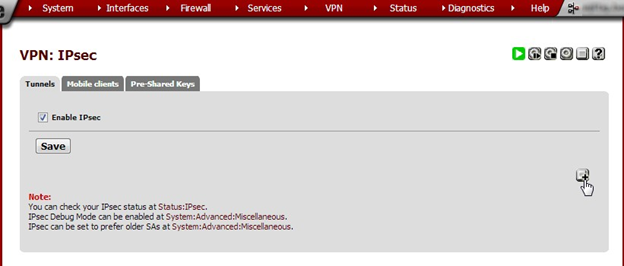
In the VPN menu select IPsec. It opens on the Tunnels tab. Click the + button to create a new Phase 1 setup. (Make sure Enable IPsec is checked and saved.)
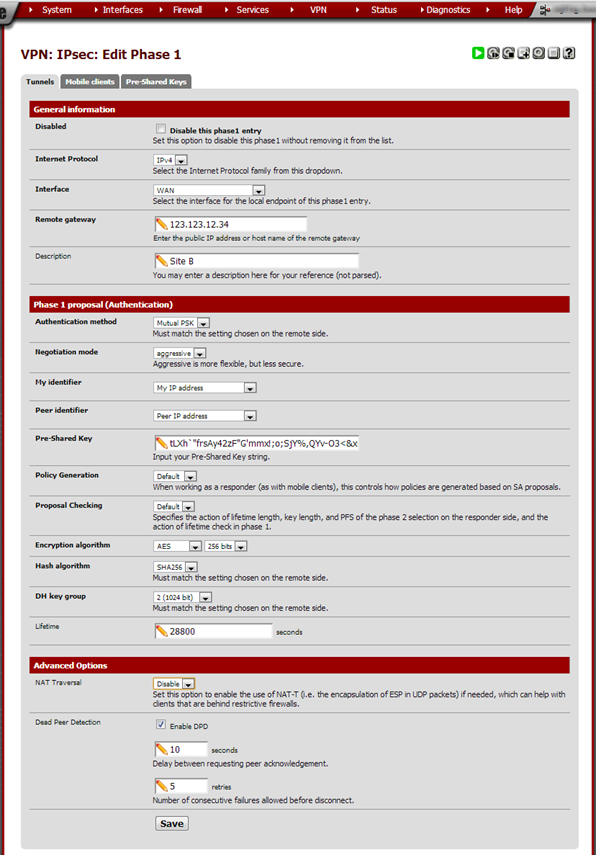
Enter these values:
| Field | Value | Notes |
| Internet Protocol | IPv4 | |
| Interface | WAN | Unless using a separate OPT interface |
| Description | Site B | The site’s locality or another suitable description |
| Authentication method | Mutual PSK | |
| Negotiation mode | aggressive | |
| My identifier | My IP address | |
| Peer identifier | Peer IP address | |
| Pre-Shared Key | A long key. | This can be generated using external utilities but be careful to copy it without extra spaces. |
| Policy Genera- tion | Default | |
| Proposal Check- ing | Default | |
| Encryption algo- rithm | AES 256bits | Read this comparison of encryption algorithms. |
| Hash algorithm | SHA256 | Read this comparison of hash algorithms. |
| DH key group | 2 (1024 bit) | Read this explanation of Perfect forward secrecy. |
| Lifetime | 28800 | |
| NAT Traversal | Disable | Turn this off unless it is definitely needed. |
| Dead Peer Detec- tion | Enable: 10 seconds, 5 retries | Leave this on unless the other side does not properly support DPD. |
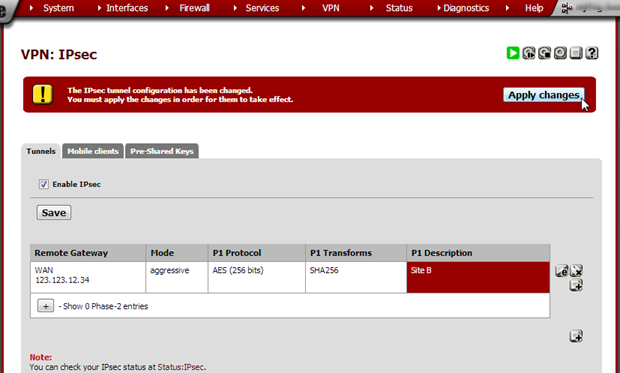
Note that the Phase 1 entry is now shown on the IPsec page. Click Save and in the next screen click Apply Changes.
Site B Configuration
Do the same as in Site A but in the Remote Gateway field enter Site A’s public IP address or FQDN and in the
Description field enter ‘Site A’.
Archive imported from the AZTCOFW knowledge base on 2026-09-05. Historical source records may refer to older software versions. Confirm applicability before changing a production system.
Original source ↗